You send a few photos from your iPhone to a form, a client or a Windows PC, and they arrive as HEIC files that won't open. JPG (also written JPEG) is the safe choice for Windows, email and websites. This guide explains what HEIC is and what your iPhone can do on its own, then shows how to convert photos you already have with Convert Cat, our photo and PDF converter for iPhone and iPad.
What HEIC is, and why it causes trouble
HEIC is the format an iPhone camera saves photos in when the camera is set to High Efficiency. It keeps photos compact, and it opens fine on iPhone, iPad and Mac. Outside Apple devices it's less certain: some Windows PCs, websites and upload forms don't accept it. JPEG opens almost everywhere, which is why people ask for it.
Your iPhone has two built-in settings that help:
- Settings › Camera › Formats › Most Compatible makes the camera save new photos as JPEG. It doesn't change the photos you've already taken.
- Settings › Photos › Transfer to Mac or PC › Automatic converts photos to a compatible format when you copy them to a computer with a cable.
Neither converts photos that are already on your phone into JPEG files you can save, email or upload. That's what Convert Cat does.
Convert HEIC to JPG in one tap
- Open Convert Cat and tap Choose Photos. Pick as many photos as you like. Photos in iCloud Drive or Files work too: tap Choose Files instead.
- Tap Convert to JPEG. When every photo you picked is an iPhone photo (HEIC), this button sits at the top. It makes JPEGs and removes the location and photo info in the same step.
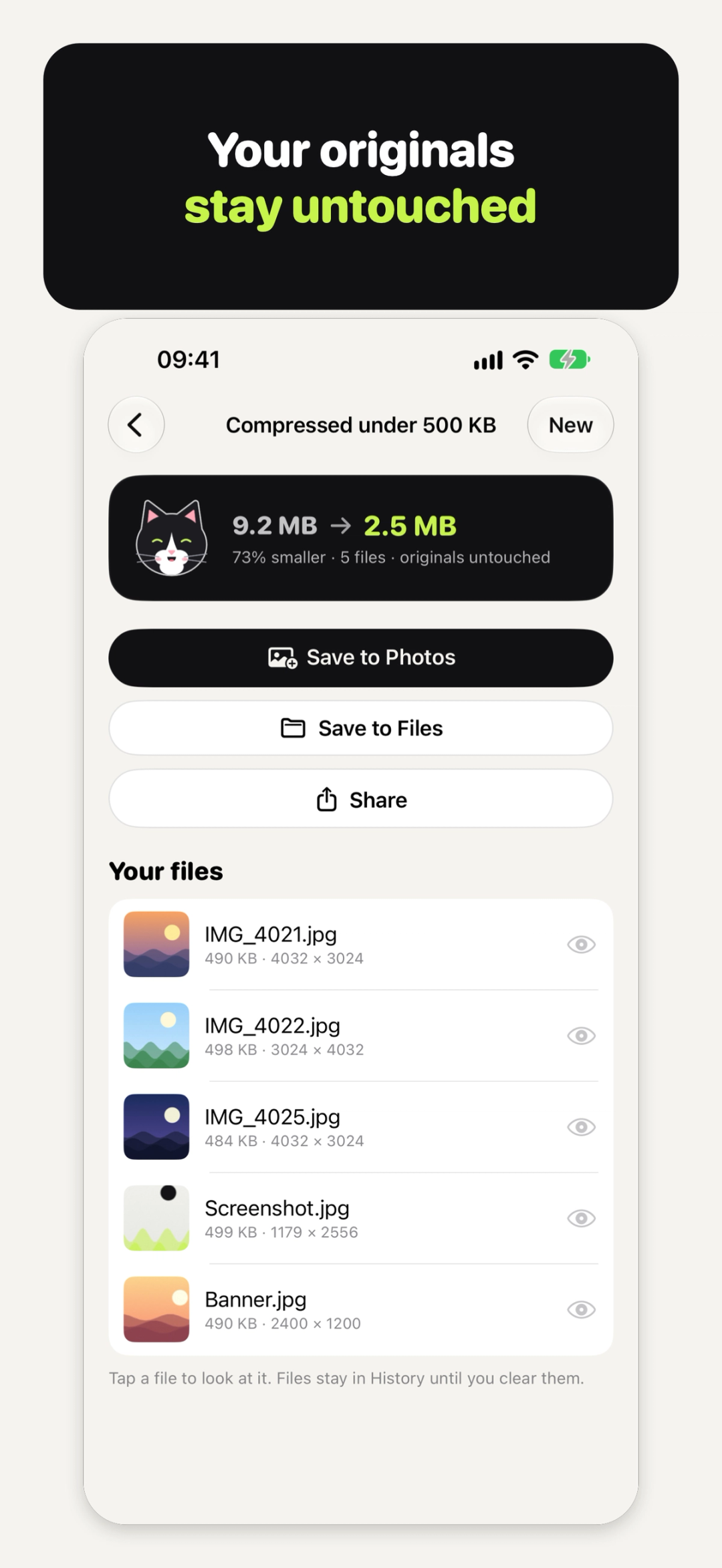
- Save or share. On the result, tap Save to Photos, Save to Files or Share.
That's the whole job. Convert Cat works on copies, so your originals in Photos and Files are never changed, and Save to Photos adds the new JPEGs next to the old photos.
More control: Convert format
If you picked a mix of files, or you want to choose the settings yourself, tap Convert format ("To JPEG, PNG or HEIC").
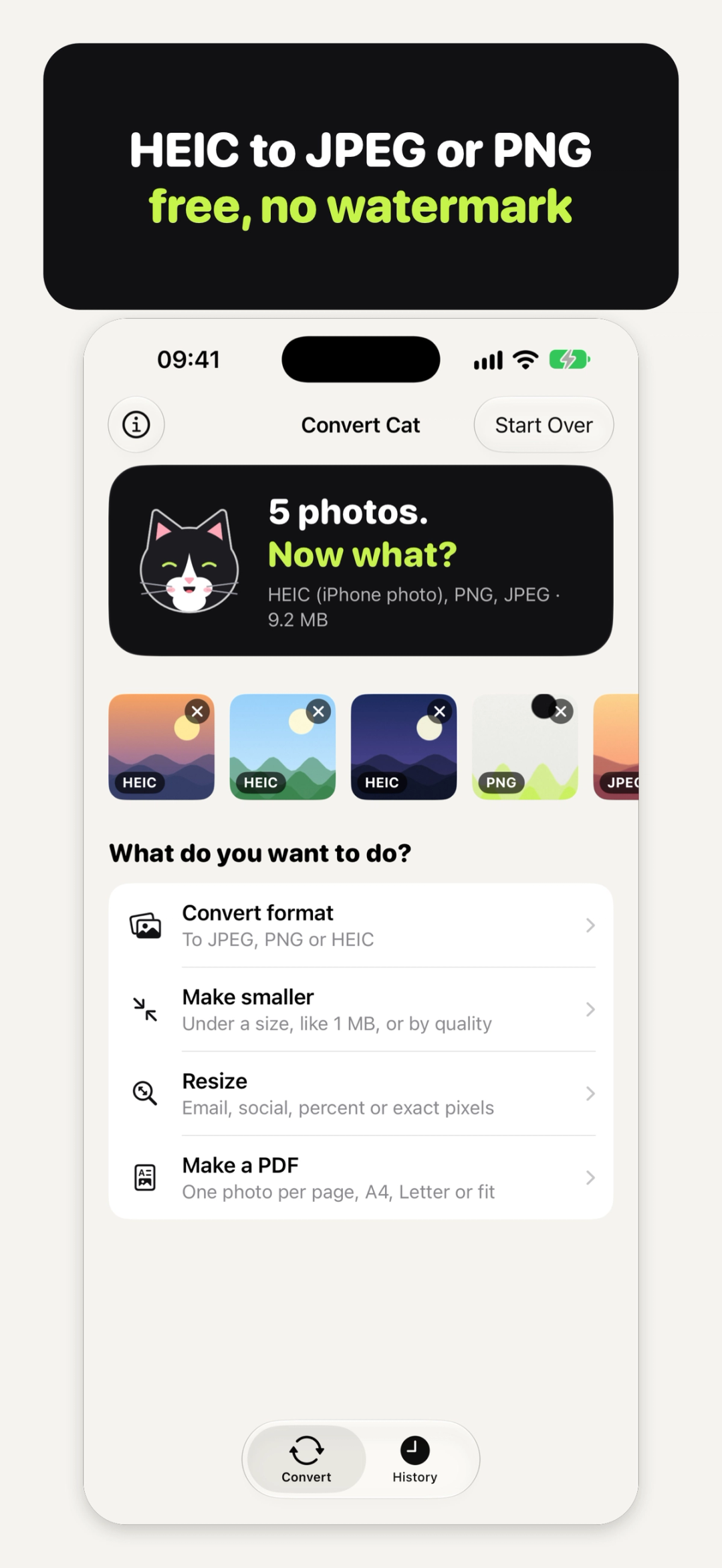
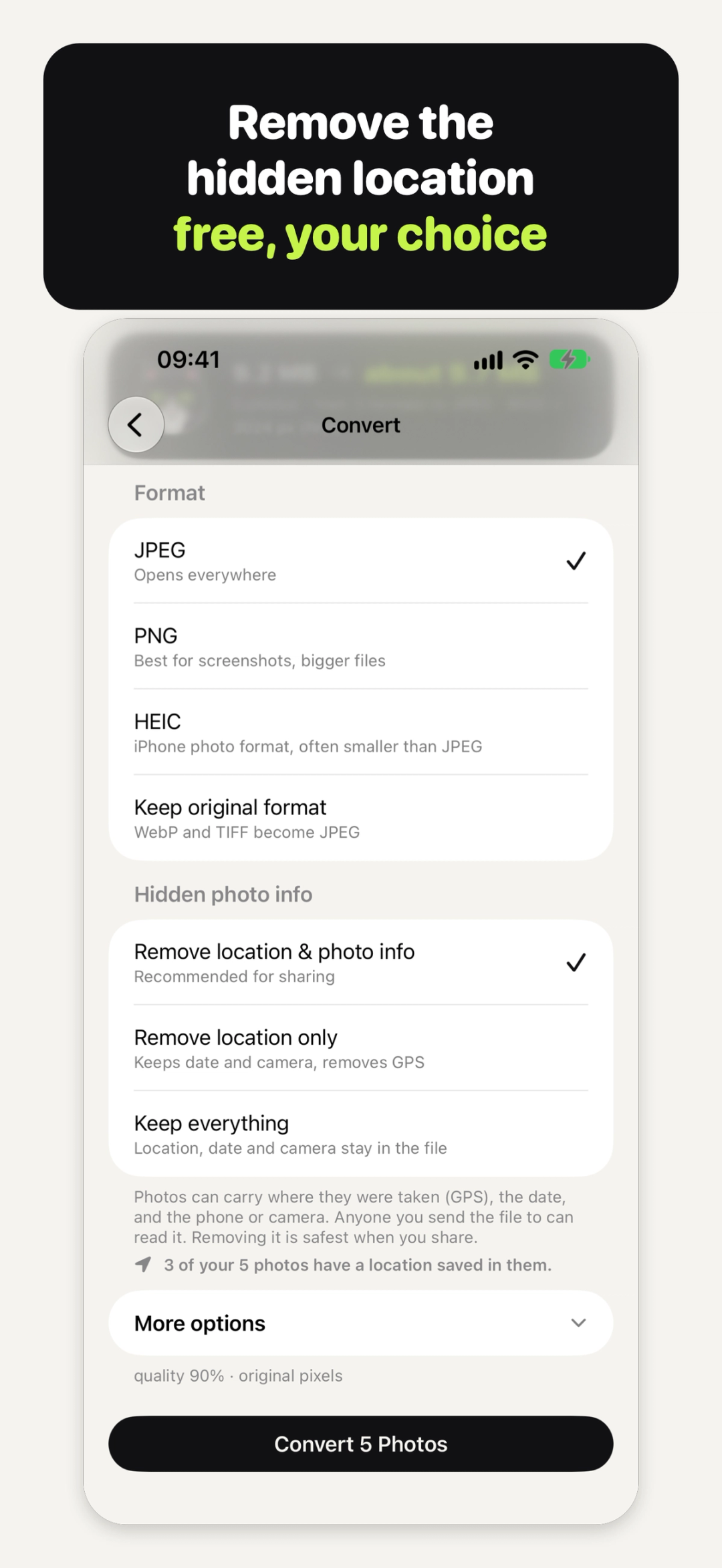
Under Format, pick:
- JPEG: opens everywhere.
- PNG: best for screenshots and graphics, but the files are bigger.
- HEIC: the iPhone photo format, often smaller than JPEG.
- Keep original format: WebP and TIFF become JPEG.
Convert Cat reads HEIC, PNG, WebP, TIFF and JPEG, so the same screen turns a WebP from a website into a JPEG too. Then tap the button at the bottom, such as Convert 5 Photos.
Under More options you can also set the quality or the pixel size before you convert.
Remove the hidden location
Photos can carry where they were taken (GPS), the date, and the phone or camera, and anyone you send the file to can read it. On the Convert screen, under Hidden photo info, choose:
- Remove location & photo info: recommended for sharing.
- Remove location only: keeps the date and camera, removes the GPS.
- Keep everything: location, date and camera stay in the file.
Convert Cat also tells you how many of your photos have a location saved in them. It starts on removing everything and then remembers your last choice. Every choice is free.
Why is my JPG bigger than the HEIC?
This surprises a lot of people. A JPEG is often bigger than the HEIC photo it came from, because HEIC is the more compact format. Convert Cat says so instead of hiding it: on the Convert screen it warns you when the JPEG will be clearly bigger, and the result says "This file is bigger than your original."
If the file has to fit an upload limit, tap Make smaller instead. Your photos carry over, and under Target size you pick 100 KB, 200 KB, 500 KB, 1 MB, 2 MB or 5 MB, or type your own size next to Under. Each photo is made as sharp as it can be while staying under the size. If quality alone isn't enough, it gets fewer pixels.
Find your files again later
Finished conversions wait in the History tab, so you can save or share them again later. Tap a file on the result to look at it before you send it. When you're done, tap New to start again with fresh photos.
Every conversion runs on your device, with no account. Your photos and PDFs aren't uploaded or put in iCloud backup; a file leaves only when you save or share it.
What it costs
Every conversion is free, and so are making photos smaller, resizing, removing the location and all the PDF tools. There's no watermark, no ads, no trial, no subscription and no account, and you can pick as many photos as you like. Convert Cat Pro is an optional, one-time Pro unlock (the App Store shows the price), shared with your family, that adds four extras: Saved presets, Name your files, Shortcuts and Convert from the share sheet ("Convert Cat" in the share sheet of Photos and Files, with your presets). More on the Convert Cat page.
Quick answers
Is JPG the same as JPEG?
Yes. They're two names for the same format; Convert Cat saves the files with a .jpg ending.
Does converting change my original photos?
No. Convert Cat works on copies. Your originals in Photos and Files are never changed.
Can I convert lots of photos at once?
Yes. Pick as many as you like, free.
Can I remove the location from a photo without changing its format?
Yes. In Convert format, choose Keep original format and Remove location & photo info. HEIC, JPEG and PNG keep their format; WebP and TIFF become JPEG.
Can I convert HEIC to PNG instead?
Yes. Tap Convert format and pick PNG. Expect bigger files: PNG is lossless.
Do I need an account?
No. There's no account and no sign-in.
Try Convert Cat
Try Convert Cat: free, no watermark, no sign-up → iyio.com/apps/convert-cat