Whether it's stock in a small shop, supplies in a back room or tools in the garage, the hard part is the same: knowing how many you have and when to get more. A notebook gets lost and a spreadsheet is a pain to open while you're standing at a shelf. This guide walks through what an inventory list usually needs, then how to keep one with Inventory Cat, our inventory app for iPhone and iPad.
What goes on an inventory list
A useful inventory list doesn't need much:
- What it is: a name you'll recognise later.
- How many you have now: the count, kept up to date as things come and go.
- Where it is: the room, shelf or box, so you can find it.
- A barcode, if the item has one, so you can scan it instead of searching for it.
- When to restock: the number at which you want to know it's running low.
In Inventory Cat, each item holds exactly these: a name, an optional barcode, a count, a place and an optional low-stock number. Every change to the count is kept too, so you can see what happened.
Add your first items
- Tap Add item on the first screen.
- Type a name. It's the only thing you have to fill in.
- Add a barcode if there is one. The field says Barcode (optional), and items without one work the same way.
- Set how many you have now under How many now.
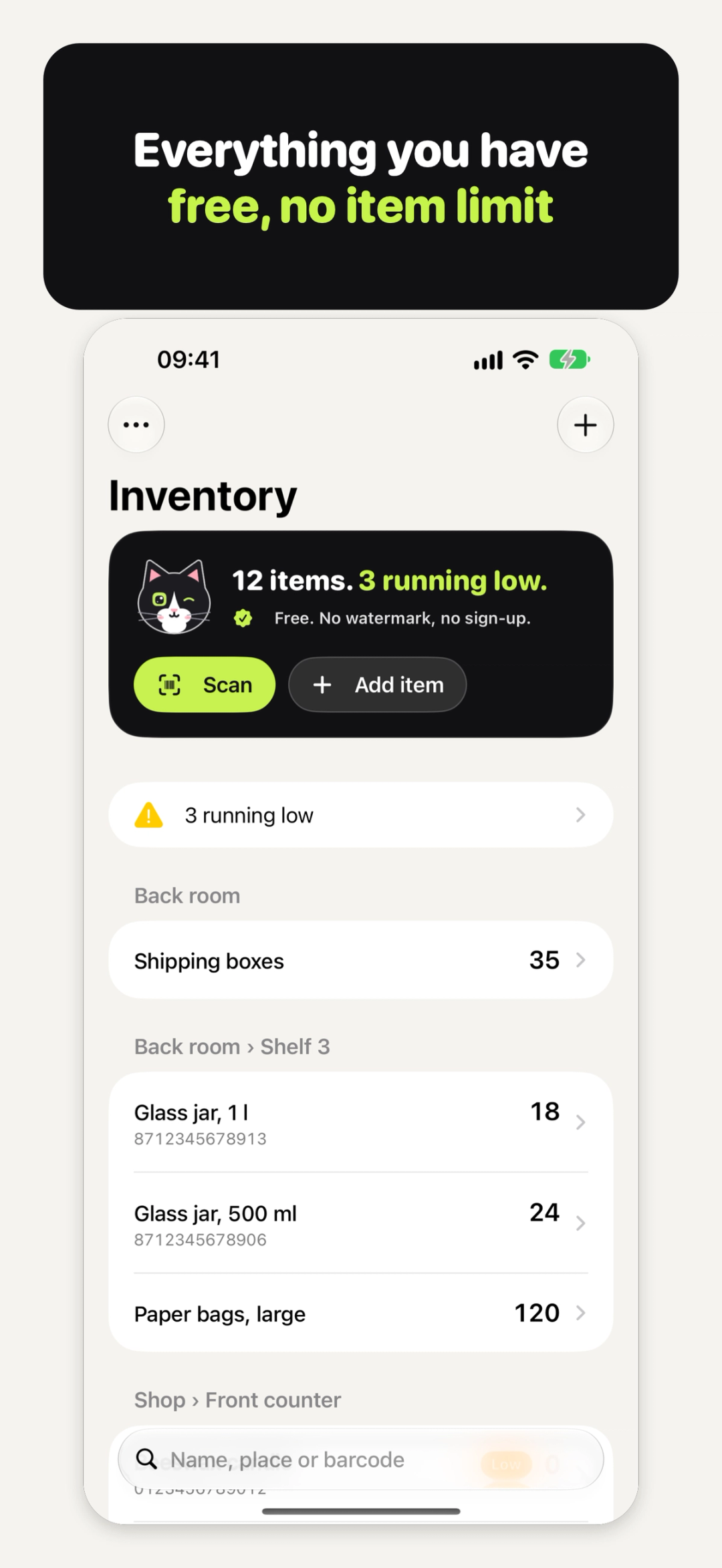
- Say where it is under Location. Use › or / for places inside places, like Shop › Back room › Shelf 3, or Garage › Shelf 2 at home. Once you have a few, Pick a place in use saves typing the same place again.
- Turn on Flag when running low and set the number, for example "At 5 or fewer".
- Tap Save.
There's no limit on how many items you add. Your list is grouped by place, and the search box finds an item by name, place or barcode.
Scan a barcode instead
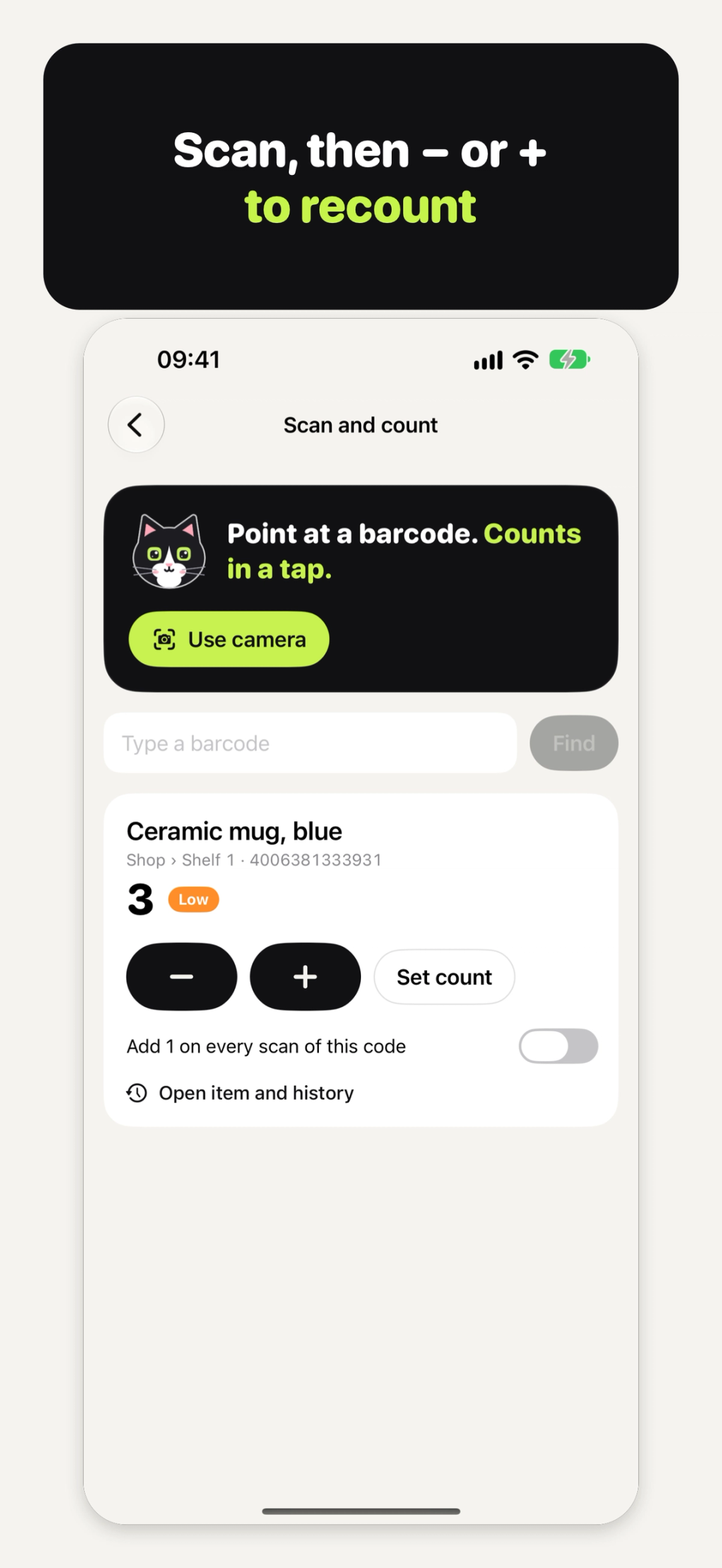
Tap Scan on the first screen, then Use camera and point your iPhone at a barcode or QR code. The camera is only asked for when you tap that button. No camera, or you'd rather type? Enter the code in Type a barcode and tap Find.
If an item already has that code, it shows right there with its count. If not, you'll see New barcode and a button to Add as a new item, with the code already filled in.
Keep the count up to date
When something is used, sold or restocked, change the count in whichever way suits you:
- Tap − or + on the scan screen or on the item's own screen.
- Tap Set count and type the exact number, after counting a shelf.
- Swipe a row in the list: swipe right to Add 1, swipe left to Remove 1.
- Count by scanning: on the scan screen, turn on Add 1 on every scan of this code, and each time you scan or type that code again, its count goes up by one.
Every change goes into the item's History, written like "Was 5, now 3". Tapped the wrong button? Open the item and tap Undo last to put it back.
See what's running low
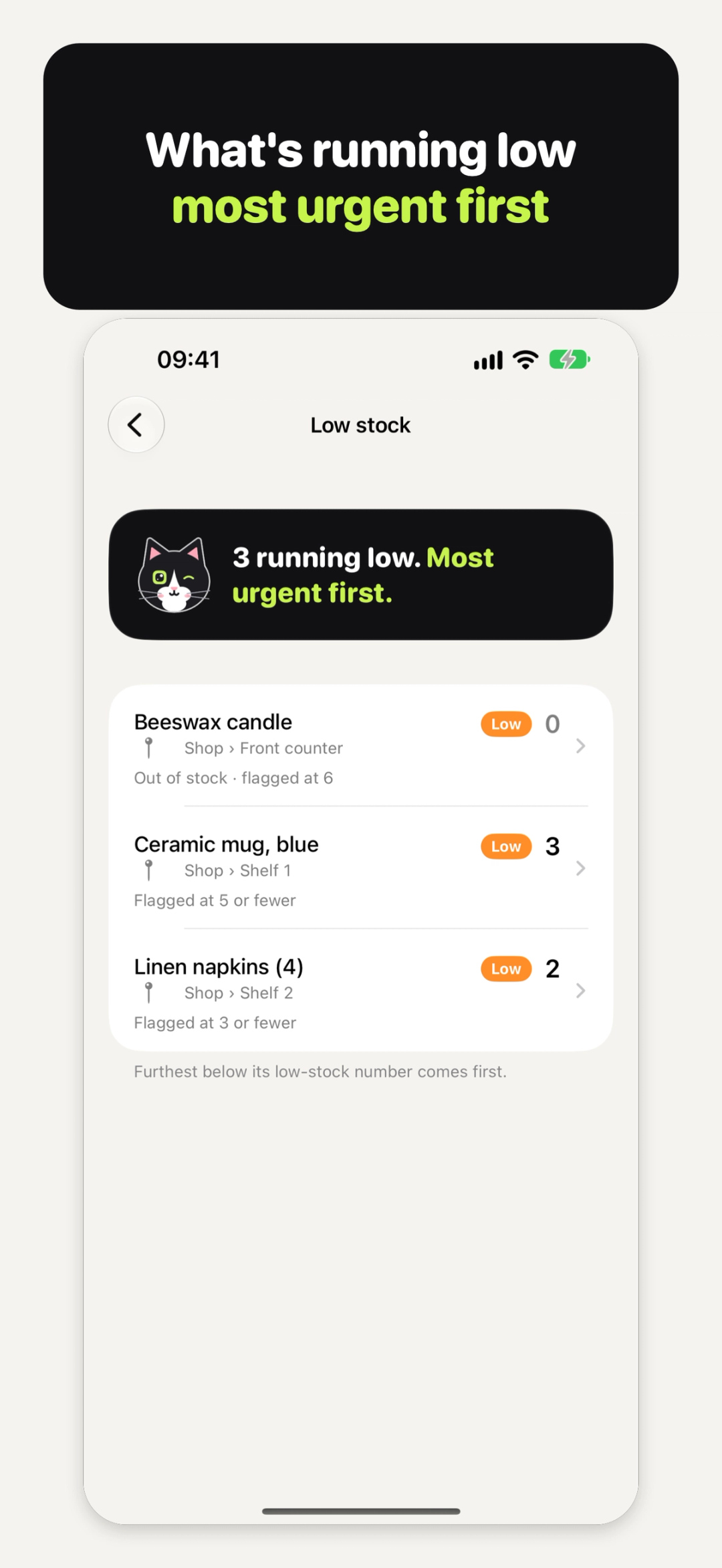
Any item with a low-stock number shows in Low stock once its count reaches that number or drops below it. When something is low, the first screen says how many are running low; tap that line, or open Low stock from the More menu (•••, top left). The list is sorted most urgent first: the item furthest below its low-stock number comes first. It's your shopping or reorder list, built from your own counts.
Export it or back it up
Open More, then Export and backup:
- Export CSV gives you every item and every field, one row each, as a file for your spreadsheet.
- Make a backup file keeps every item and its history. Save it to Files, or AirDrop it to another iPhone or iPad.
- Restore from a backup file brings it back later, or on a new iPhone. You'll be asked before your current list is replaced.
Your items are kept on your device and in your own backups unless you share, save or print them. There's no account to sign in to.
Bigger counts with Pro
A small shop that does a full count now and then may want Inventory Cat Pro. Stocktake lets you count everything, then compare expected and counted before you apply it. Import a spreadsheet brings items in from CSV and shows every change before anything is saved. Barcode labels prints sheets of labels as a PDF for A4 or Letter label paper, and Low-stock reminders sends a daily notification listing what's running low.
What it costs
Adding items, scanning, counting, low stock, CSV export and backup are free, with no item limit, no ads and no account. Inventory Cat Pro is an optional one-time Pro unlock, with no subscription; it adds Stocktake, Import a spreadsheet, Barcode labels and Low-stock reminders. Everything outside Pro stays free. More on the Inventory Cat page.
Quick answers
Is there a free inventory app for iPhone?
Inventory Cat is free to keep a count, with no item limit. Stocktake, spreadsheet import, barcode labels and reminders are in Pro.
Can I use it for my home?
Yes. Use places for rooms and boxes, like Garage › Shelf 2, and count a pantry, supplies or a collection the same way a shop counts stock.
Do my items need barcodes?
No. The barcode is optional. Items without one can be found by name or place.
Can I move my inventory to a new iPhone?
Yes. Make a backup file, save it to Files or AirDrop it, then restore from it on the new iPhone. It keeps every item and its history.
Does it work on iPad?
Yes, on iPhone and iPad.
Try Inventory Cat
Try Inventory Cat: free, no watermark, no sign-up → iyio.com/apps/inventory-cat