A passport renewal, a visa, a green card form: they all want a photo, and a photo booth or studio isn't always nearby. For many documents you can take the photo at home with your iPhone. This guide walks through what the rules usually ask for and how to set up the shot, then how to take, check and print the photo with Passport Cat, our passport photo app for iPhone and iPad.
First: check your document's rules
Every passport, visa and ID card has its own published photo rules: the size, how big your head is in the frame, the background colour, your expression and how recent the photo is. A U.S. passport photo is 2×2 in (51×51 mm); the UK passport and many others use 35×45 mm. Some documents don't allow a photo you take yourself at all. Read the issuing authority's photo page before you start: only that authority decides whether your photo is accepted.
Set up the shot
- The wall: a plain wall with nothing on it. Most documents want white or off-white; UK passport prints need cream or light grey.
- The light: daylight from a window in front of you. Turn the flash off: it causes glare and red eye.
- No shadows: a lamp from one side puts a shadow on half the face, and standing against the wall puts one behind you. Stand about half a metre (2 ft) from the wall.
- The distance: have someone hold the iPhone about 1.5 m (5 ft) away at eye level, and walk closer rather than zooming. Selfies at arm's length distort the face, and some countries, including the UK, reject them.
- Your pose: shoulders square, head level, looking straight into the lens, hair away from your eyes. Most documents want a neutral face with your mouth closed.
- Glasses: taking them off is safest. Some documents don't allow them at all, and the U.S. passport allows them only with a signed doctor's note.
Don't edit it
Don't retouch the photo, use a filter, smooth the skin or replace the background. The U.S. and UK passport rules, for example, don't allow filters or retouching, and the U.S. rules also ban background replacement and AI edits. If the wall or the light is wrong, fix the real thing and take the photo again.
Take and check it in Passport Cat
- Pick your document. The card on Home shows the document, its size and background. Tap Change to search by country or document. Passport Cat has the photo rules for 104 passports, visas and ID cards. Tap Rules to read them.
- Take the photo. Tap Take photo, or Choose from Photos to use one you already have. The back camera opens first. If you switch to the front camera, the shutter starts a 3-second timer so you can lower your arm. Where the rules don't allow selfies, the camera asks you to have someone else hold it instead.
- Read the checks. Passport Cat measures head size and position, eyes, expression, light, shadows, focus and background, and compares each with your document's published rules. You'll see "Meets every check", or how many things to fix and what to change, in plain words.
- Fix and retry. If a check fails, the button at the bottom takes you straight back: Retake photo or Choose another photo. If the head looks too big or too small, use the Head size slider.
- Confirm the last few points. A few things the app can't see reliably, so it asks you to confirm them before Print & download.
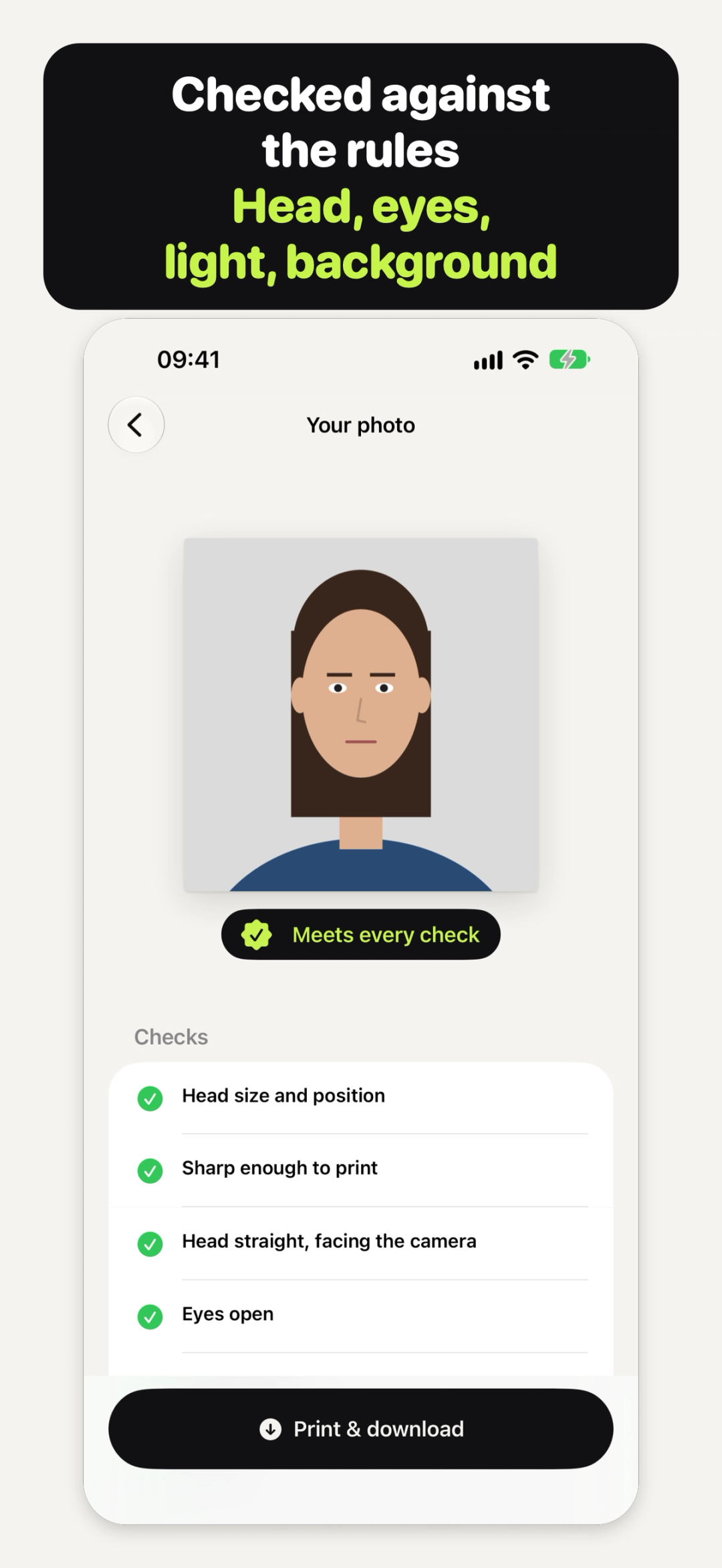
Passport Cat never retouches your photo: it only crops and scales it, never stretches it or gives it a new background. Some documents need a photo taken by the authority or a certified photographer. For those, Home says "Self-made photos aren't accepted": you can still use the checks to practise, but downloads are off.
For more tips, open the Photo guide on Home.
Print it or download it
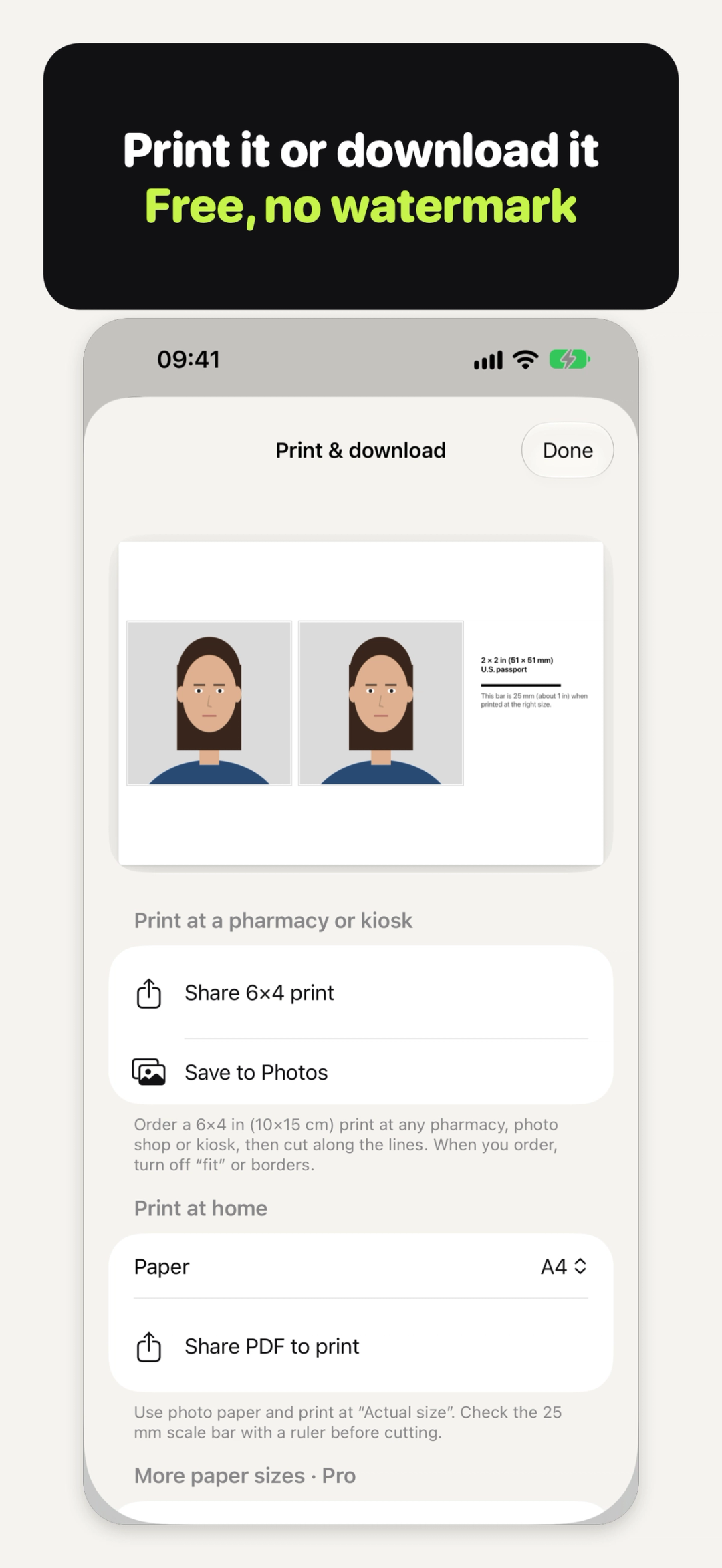
Tap Print & download. What you see depends on what your document's rules allow:
- Print at a pharmacy or kiosk: tap Share 6×4 print or Save to Photos, and order a 6×4 in (10×15 cm) print. When you order, turn off "fit" or borders, or the photos come out the wrong size. Then cut along the lines.
- Print at home: pick Letter or A4 and tap Share PDF to print. Use photo paper and print at "Actual size". Some documents, like the U.S. passport, allow home printing; others, including the UK and Australia, need a professional print.
- Apply online: tap Share digital photo. Some upload pages want the photo exactly as the camera took it and crop it themselves; others want a file at an exact pixel size. Passport Cat makes the right one for your document.
Every print sheet has a 25 mm scale bar. Measure it with a ruler before you cut: if it isn't 25 mm, the printer resized it, so reprint at actual size.
What it costs
Taking, checking, printing and downloading are free, as many photos as you need, with no watermark, where the document's rules allow. There are no ads, no account and no subscription. Passport Cat Pro is an optional one-time purchase that adds more paper sizes (7×5, 10×8 and 5×3.5 in photo paper, and A5), saved photos for each family member, a family sheet with several people on one 6×4 print, and a check of which other passports and visas your photo works for. More on the Passport Cat page.
Your photos are checked on your device and kept out of iCloud backups; they leave only when you share them or save them to Photos.
Passport Cat can't promise your photo will be accepted: the issuing authority makes the final decision, and Passport Cat isn't affiliated with any government.
Quick answers
Can I take a passport photo on my iPhone?
For many documents, yes, including the U.S. passport. Some documents need a photo from the authority or a certified photographer, so check your document's rules first.
Can I take a UK passport photo on iPhone?
Check the rules on GOV.UK first. A printed UK passport photo is 35×45 mm on a cream or light grey background, taken by someone else, not as a selfie. Paper applications need professionally printed photos, so no home printing.
Can I use a selfie?
It depends on the document: some, including the UK passport, don't allow them. Either way, having someone else take it from about 1.5 m (5 ft) away avoids the distortion of an arm's-length selfie.
Will my photo be accepted?
No app can promise that. Only the issuing authority decides. Checking against the published rules helps you fix problems first.
Try Passport Cat
Try Passport Cat: free, no watermark, no sign-up → iyio.com/apps/passport-cat