A job you want just opened, and your laptop is somewhere else. You can make a resume on your iPhone and send it as a PDF from there. This guide walks through what a resume usually has, how to make one that an applicant tracking system can read, then how to do it with Resume Cat, our resume builder for iPhone.
What goes on a resume
Most resumes carry the same few parts:
- Your contact details: your name, email, phone and city. A full street address isn't needed.
- Experience: each job with its title, company, dates and a few bullets on what you did.
- Education: schools, degrees and courses.
- Skills: the tools and strengths that fit the job.
You can add more when it helps: a short summary, projects, certifications, languages, volunteering or awards. What an employer asks for is up to them, so if a job ad asks for something, follow it.
Start your resume
- Start from scratch, or from an example. On the home screen, tap Start from scratch, or Start from an example and pick one of four: Student / first job, Retail & service, Office & admin, or Tech. The people and details in the examples are made up, so replace them with your own.
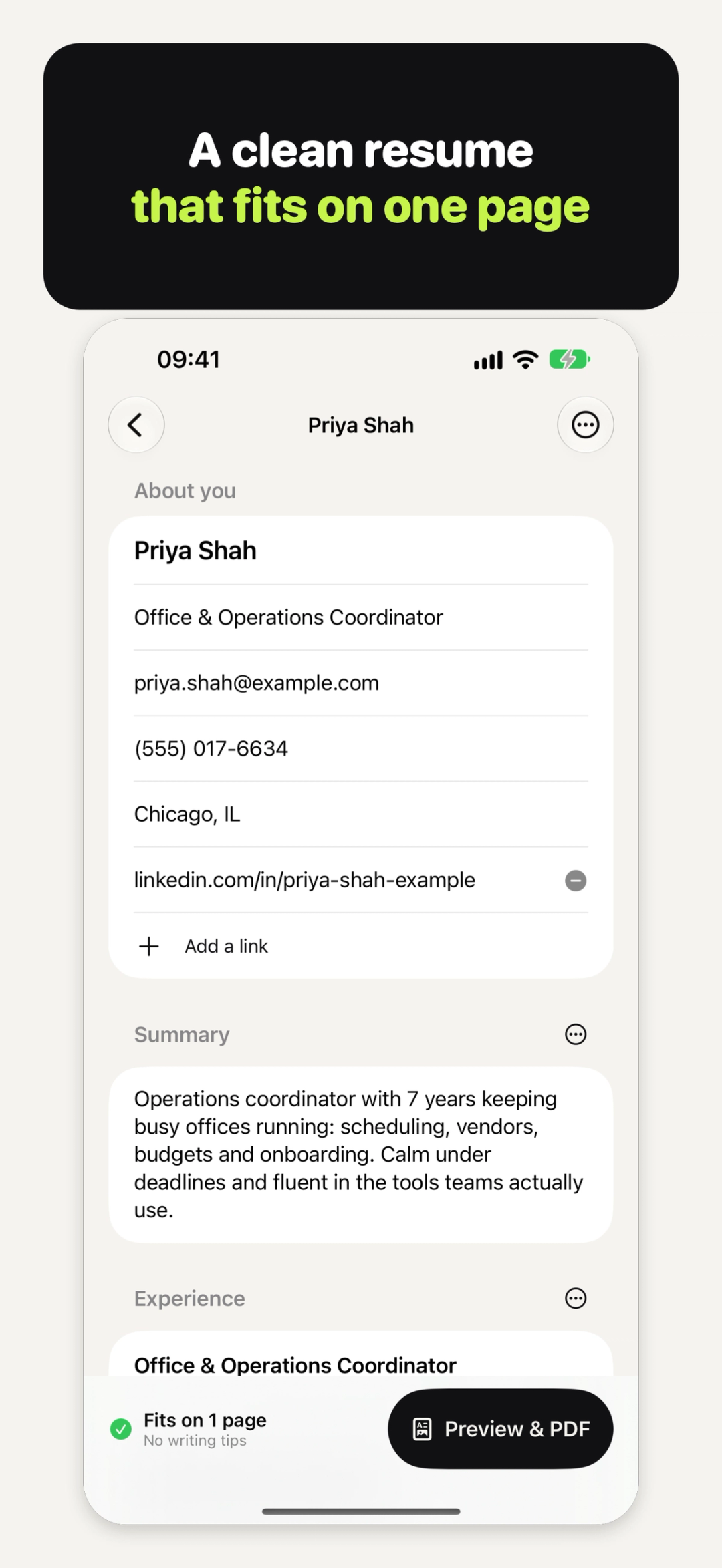
- Fill in the basics. Under About you, add your name, a headline, email, phone and city. Your name, one job and a few skills are enough for a first resume; everything else is optional.
- Add your jobs. Tap Add job and fill in the title, company and dates. Tap Add bullet point for each thing you did.
- Start each bullet with a verb. Tap Verbs to pick an action verb for your bullet. Each section's menu also has Writing tips for that section.
Every change is saved as you type, and again when you switch apps.
Shape the sections
Tap Add section for a summary, projects, certifications, languages, volunteering, awards or a section with your own heading. From a section's menu you can Rename heading, Move up, Move down or Reorder sections… to put them in the order you want.
Check it before you send it
The bar at the bottom of the editor says Fits on 1 page, or how many pages your resume runs to, and it changes as you edit. Under it is a count of writing tips. Tap it for the writing check, which points out things like bullets that don't start with a verb, "I" and "my", dates that don't match and missing contact details. Tap Show me to jump to the part it's about. The check is advice; it never stops you from making the PDF.
What makes a resume ATS-friendly
An applicant tracking system (ATS) is software some employers use to read and sort the resumes they get. The usual advice for a resume such a system has to read is:
- One column, so the text reads in order. Some systems read two columns out of order.
- Standard headings, like Experience, Education and Skills.
- Plain black text, with nothing drawn behind the words.
- Real text, not a picture of text.
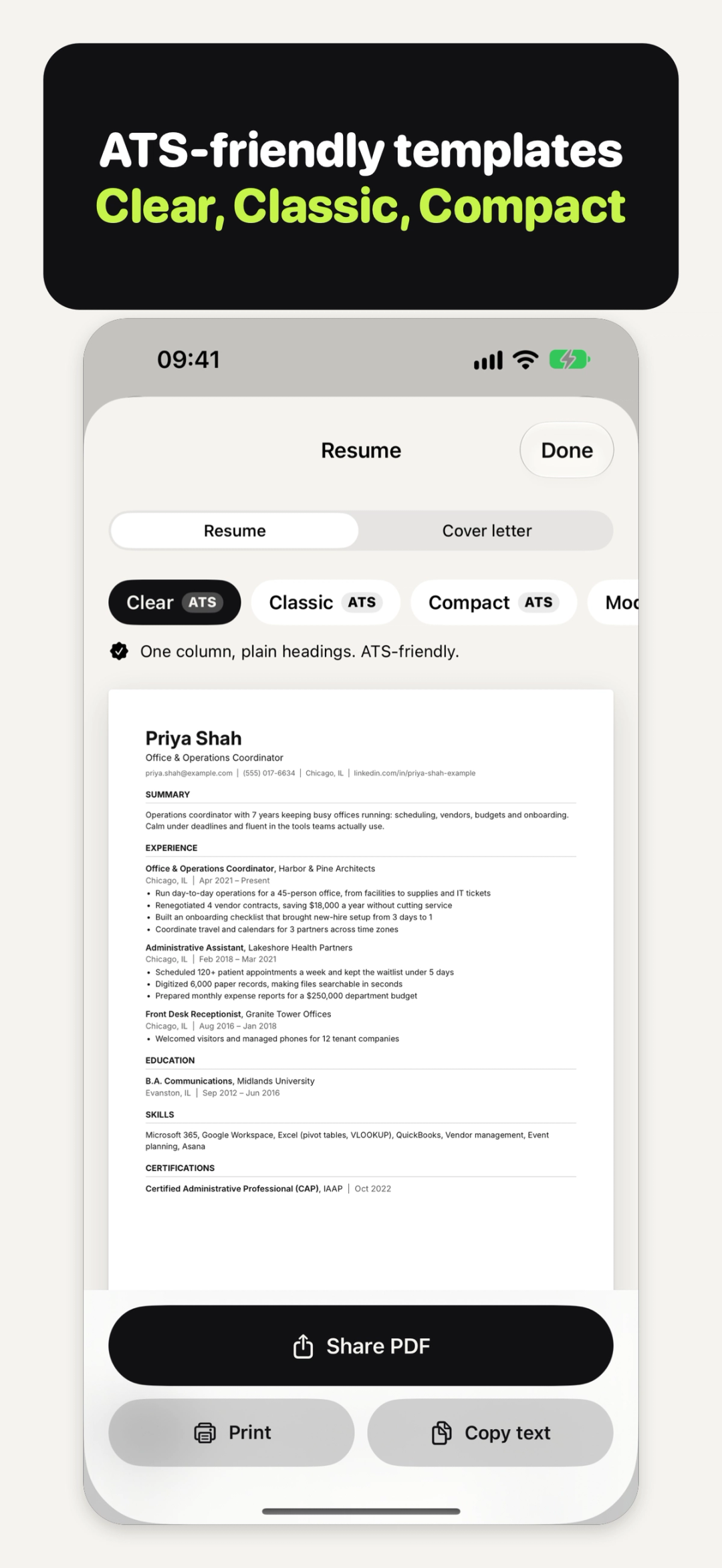
In Resume Cat, three of the six free templates carry an ATS mark: Clear, Classic and Compact. They're one column, with black text and standard headings, and every Resume Cat PDF has real, selectable text. The other three are free too: Modern and Elegant add a colour accent, and Two-column puts contact details and skills in a side column, best for emailing to a person. No app can promise how an employer's system will read your resume, or that you'll get an interview, and Resume Cat doesn't.
Make the PDF and send it
- Tap Preview & PDF. The template row sits above the page.
- Pick a template, a font and the paper. Choose from six templates and four fonts, on US Letter or A4. Changing the look doesn't change what you wrote.
- Send it. Tap Share PDF to send it to Mail, Files or any app, tap Print, or tap Copy text to paste it into an online application form.
Applying for more than one job
Touch and hold a resume on the home screen and tap Duplicate to tailor, or use Duplicate to tailor for a job in the editor's menu, to keep a copy for each job. Rename each copy after the job it's for; only you see that name.
The editor's menu also has Write a cover letter. Your name and contact details come from the resume, in the same template, and you can start from a simple outline and replace everything in [brackets].
Doing freelance work between jobs? Our guide on how to make an invoice on iPhone shows how to bill for it.
What it costs
Building a resume, the examples, the writing tips and check, the one-page check, all six templates and four fonts, your cover letter, duplicating to tailor, and the PDF (Share PDF, Print and Copy text) are free, for as many resumes as you like. There's no watermark, no ads, no account and no subscription. Resume Cat Pro is an optional one-time purchase with three extras: two designed templates, Bold and Edge, in your colour, for a resume you email to a person; a cover letter for each job, kept per company; and "Sent to" notes to record the company and date each time you send a resume. More on the Resume Cat page.
Your resumes are kept on your iPhone and in your own backups unless you share, save, print or copy them. There's no account and nothing to sign in to.
Quick answers
Can I make a resume on my iPhone without a laptop?
Yes. Resume Cat makes the PDF on your iPhone, and you can share, print or copy it from there.
Which templates are ATS-friendly?
Clear, Classic and Compact carry the ATS mark: one column, black text and standard headings. No app can promise how an employer's system reads a resume, or an interview.
Is there a resume example for students?
Yes. Student / first job is one of the four examples, for little work experience yet: school, projects and volunteering.
Does it write my resume for me?
No. There's no AI service in it. It gives you writing tips, action verbs and a writing check, and you write the words.
Can I write a cover letter too?
Yes, one with each resume, free and in the same template. A separate letter for each job is part of Resume Cat Pro.
Try Resume Cat
Try Resume Cat: free, no watermark, no sign-up → iyio.com/apps/resume-cat