It's Friday, your timesheet is due, and your hours are in your head or on the back of a receipt. If you track them on your iPhone as you work, the timesheet is ready when you need it. This guide walks through what a timesheet usually shows, then how to make one with Hours Cat, our work hours tracker for iPhone.
What goes on a timesheet
Most timesheets carry the same few things:
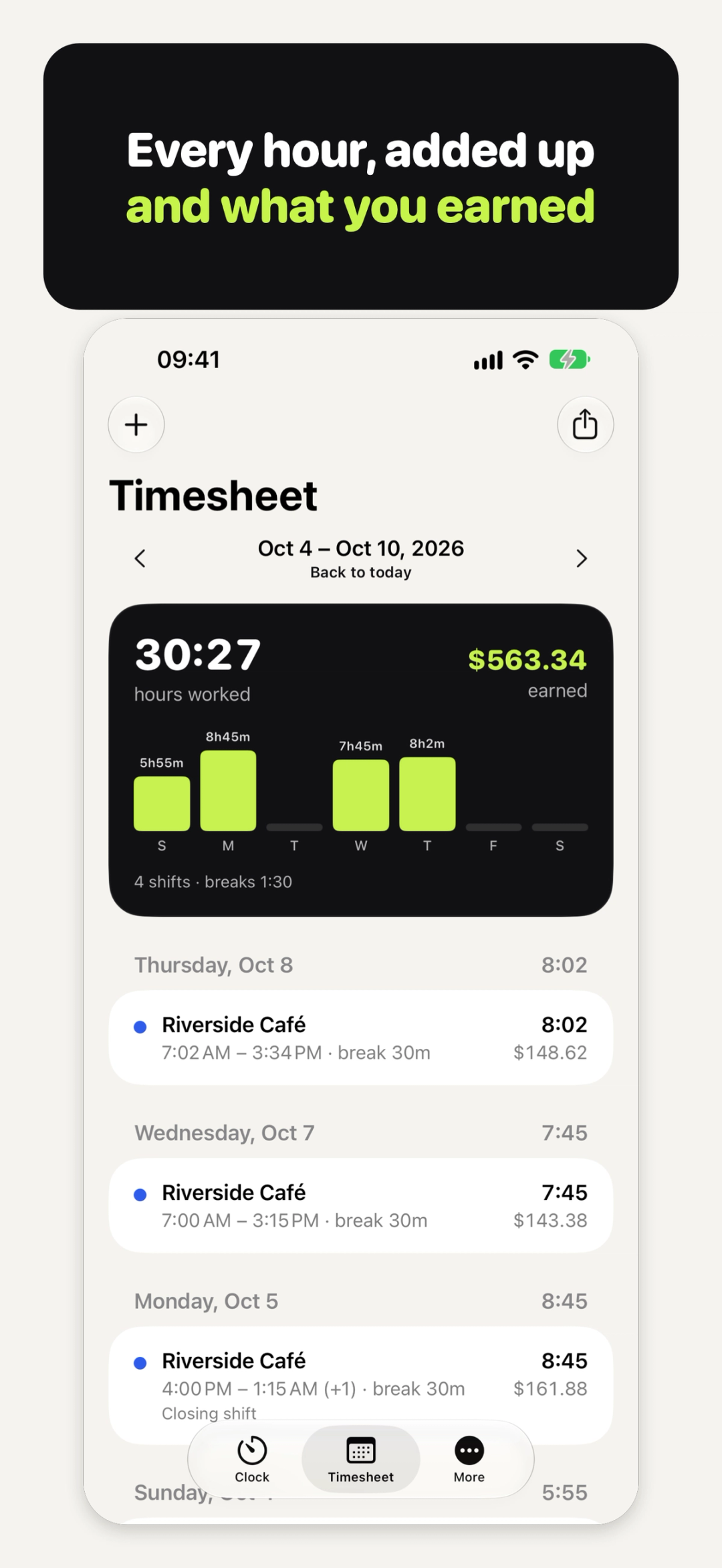
- Your name and the dates it covers, say this week or last month.
- Every shift: the date, when you started and stopped, your breaks and the hours worked.
- The total hours, and the pay if you're paid by the hour.
- A place to sign, for you and for whoever approves it.
How your employer rounds time, counts breaks or pays overtime is up to them and to the rules where you work. Hours Cat is your own log of the hours you work, not a payroll system or an employer's time clock, so if your employer has a form or a rule, follow it.
How to track work hours on iPhone
- Tap Start on the Clock tab when you begin work.
- Tap Break when you pause, and Resume when you're back.
- Tap Stop when you're done.
The Clock tab shows today and this week as you go, and what you earned once you've set a rate. A running shift also shows on the Lock Screen, with Break and Stop buttons. The shift is saved the moment you tap Start, so closing the app doesn't lose it. Want to remember what you did? Add a note to the running shift: what you did, and where.
Forgot to clock out? Fix it
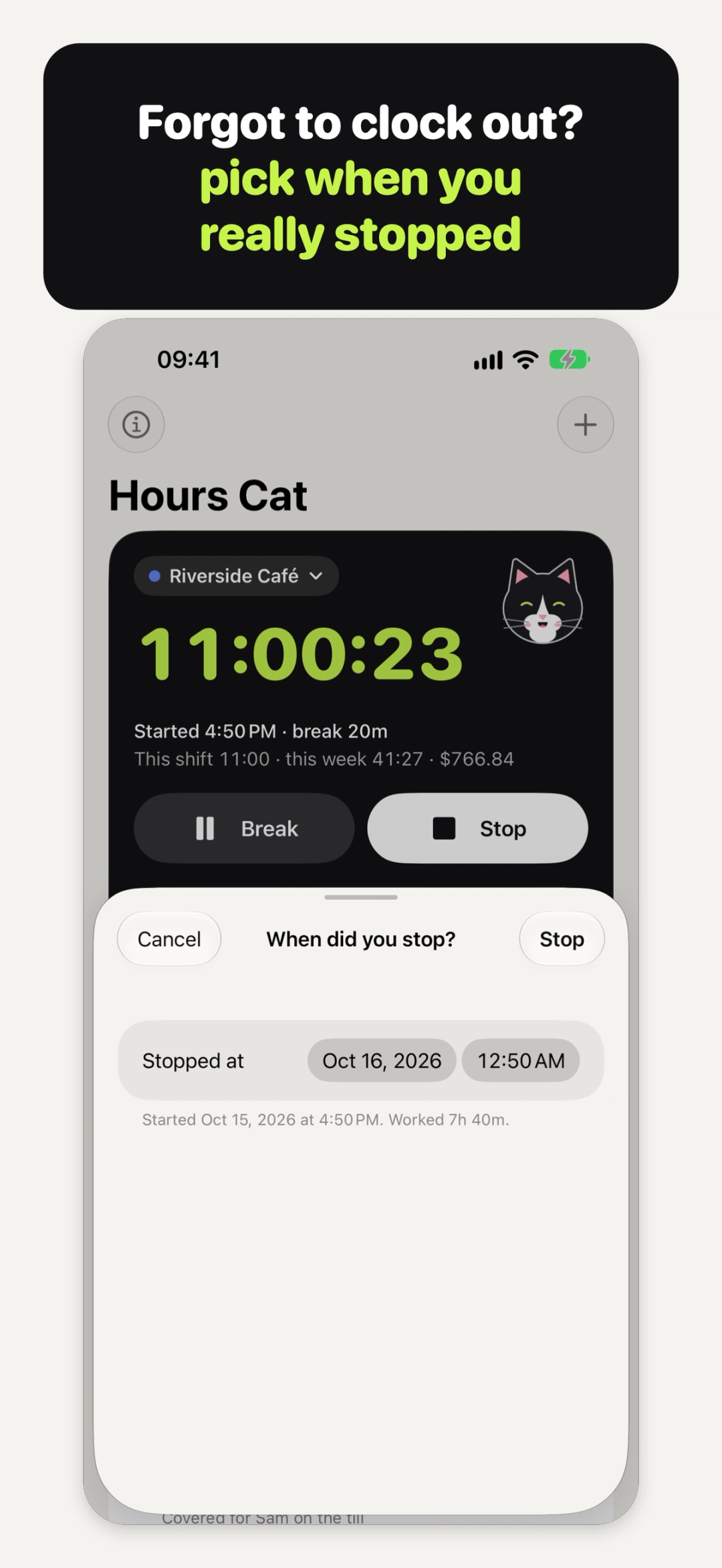
It happens to everyone. Touch and hold Stop, choose Stop at a different time, and pick when you really stopped. If a shift has been running for hours, the Clock tab asks "Forgot to stop?" with a Fix button that does the same.
Other fixes work the same way:
- Started late in the app? Tap Change start time or breaks under the running shift.
- Missed a whole day? Tap + and add the shift by hand.
- Same shift as yesterday? Swipe right on it and tap Repeat today.
- Need a break you forgot to record? Open the shift and tap Add break.
- Swiped a shift away by mistake? Tap Undo.
A shift that runs past midnight stays one shift, so a night shift isn't split in two.
Add your rate (optional)
Set your hourly rate and currency on your job, and Hours Cat shows what you earned: your hours times your rate, with any pay rules you set, before tax and deductions. If your employer rounds time or takes an unpaid break automatically, you can turn on rounding and an automatic break in More › Rounding, overtime and breaks to match. Both are off until you turn them on. In More you can also show hours as 7:45 or 7.75, and pick the day your week starts on.
Make the timesheet
Open the Timesheet tab and tap Export.
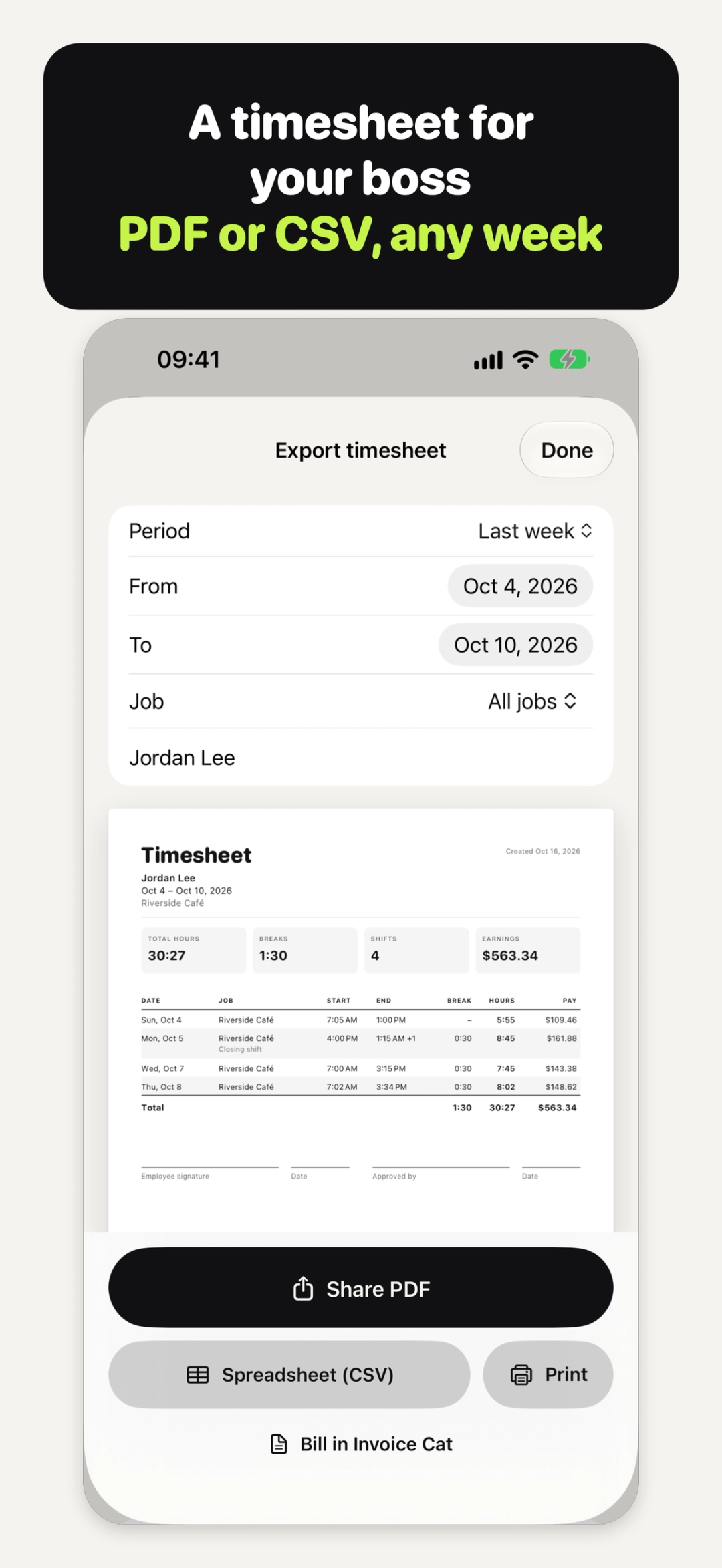
- Pick the dates: this week, last week, this month, last month, or any dates you choose.
- Add your name if you want it on the timesheet. It's optional.
- Preview the PDF. It lists the date, job, start, end, break and hours for every shift, the total hours, the pay when you've set a rate, and lines for your signature and an approver's. Check the dates at the top before you send it.
- Send it. Tap Share PDF to send it from any app, Spreadsheet (CSV) for your spreadsheet, or Print.
There's no app name or watermark on the timesheet. It's yours.
Billing clients for your hours?
If you're self-employed, you probably bill your hours rather than hand in a timesheet. Our guide on how to make an invoice on iPhone shows how to turn hours into an invoice: 1.5 is an hour and a half.
What it costs
Clocking in and out, breaks, notes, your history, editing and Undo, one job with its rate and currency, rounding, the automatic break, and the PDF and CSV timesheet for any dates are free, with no limits on shifts or history. There's no watermark, no ads, no account and no subscription.
Hours Cat Pro is an optional one-time purchase for people with more than one job or a different payday: several jobs, each with its own rate, currency and colour; overtime per job; pay every two weeks or twice a month, with a pay stub; and your job's colour on the Lock Screen. More on the Hours Cat page.
Your shifts are kept on your iPhone and in your own backups unless you share, save or print a timesheet. There's no account, so there's nothing to sign in to.
Quick answers
Can I make a timesheet on iPhone without a spreadsheet?
Yes. Hours Cat makes the PDF on your iPhone, and you can share or print it from there. The CSV is there if you do want a spreadsheet.
I forgot to clock out. Can I fix it?
Yes. Touch and hold Stop, choose Stop at a different time, and pick when you really stopped. You can also change a shift's end time later.
Does it work out my pay?
Yes, once you set an hourly rate: your hours times your rate, with any pay rules you set, before tax and deductions. It's your own record, not a payslip.
Can I track more than one job?
With Hours Cat Pro. The free plan has one job, and everything else about it stays free.
Does a night shift count as one shift?
Yes. A shift that runs past midnight stays one shift.
Try Hours Cat
Try Hours Cat: free, no watermark, no sign-up → iyio.com/apps/hours-cat