A lease renewal, a permission slip, a form from a new job: it arrives as a PDF in your email, and the sender wants it back signed. You don't need a printer or a scanner for that. This guide walks through what you usually do to a PDF before you send it back, then how to sign a PDF on iPhone with Sign Cat, our PDF signing app for iPhone and iPad.
What signing a PDF usually means
Most forms ask for the same few things:
- Your signature, on the line marked for it.
- Your initials, sometimes on a few pages.
- The date, often in a set format.
- Filled-in details, such as names, addresses and ticked boxes.
Sign Cat handles all four. Once you've done it once, the next form goes faster, because your signature is already saved.
Make your signature once
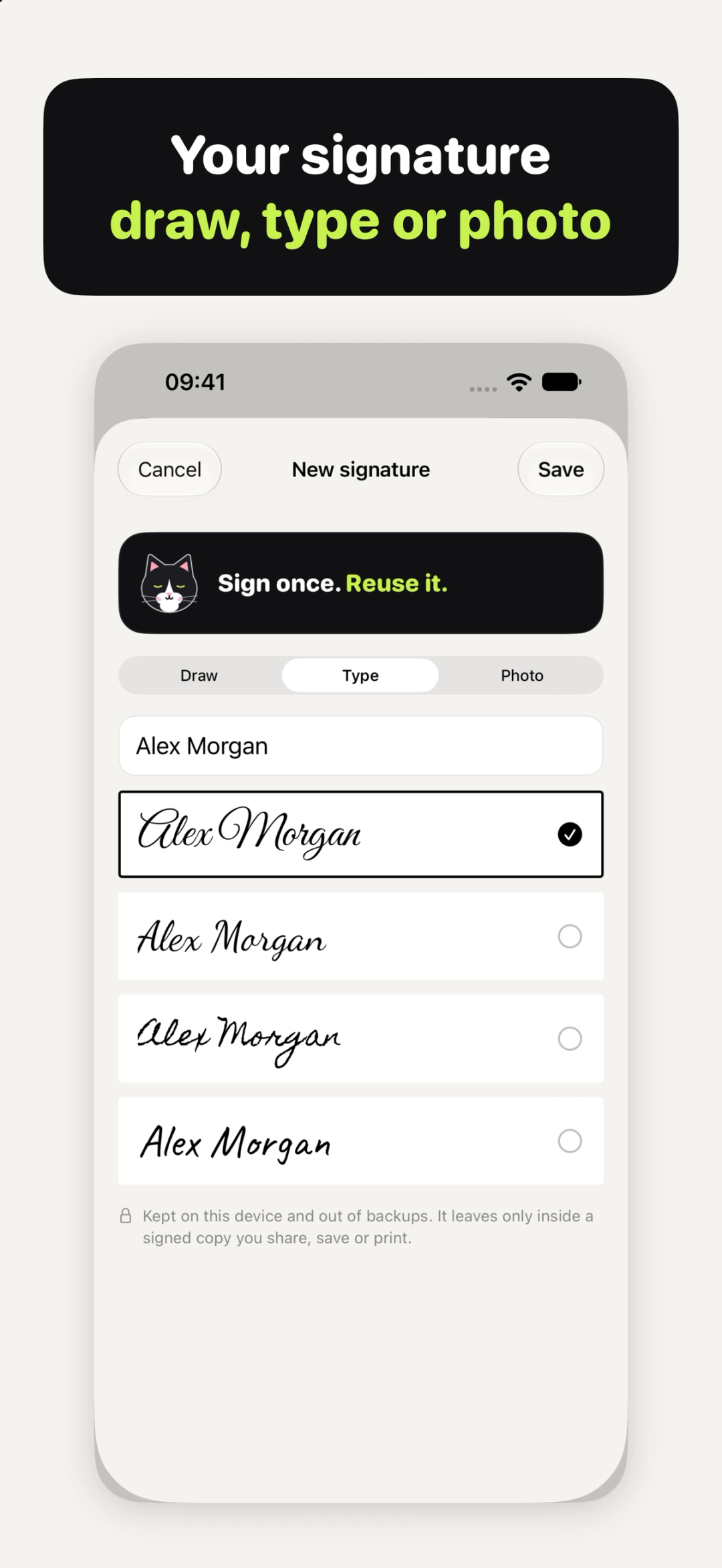
The first time you tap Signature, Sign Cat asks you to make one. Pick one of three ways:
- Draw: sign with your finger or Apple Pencil.
- Type: type your name and choose one of four handwriting fonts.
- Photo: take a photo of your signature on paper. Sign Cat removes the paper background on your device and keeps the ink.
Make your initials the same way. Both are saved, so you can reuse them on every document, and you can manage them in My signatures, the signature button at the top right of your library. Your signatures are kept on your device and out of backups. A signature leaves your device only inside a signed copy you share, save or print.
Get the PDF into Sign Cat
- From email: open the PDF attachment, tap Share and choose Sign Cat.
- From Files: tap Open PDF in Sign Cat, or share the PDF from Files to Sign Cat.
- Only have paper? Tap Scan, then Scan paper to use the camera, or From Photos to pick a photo of it.
How to fill out and sign a PDF on iPhone
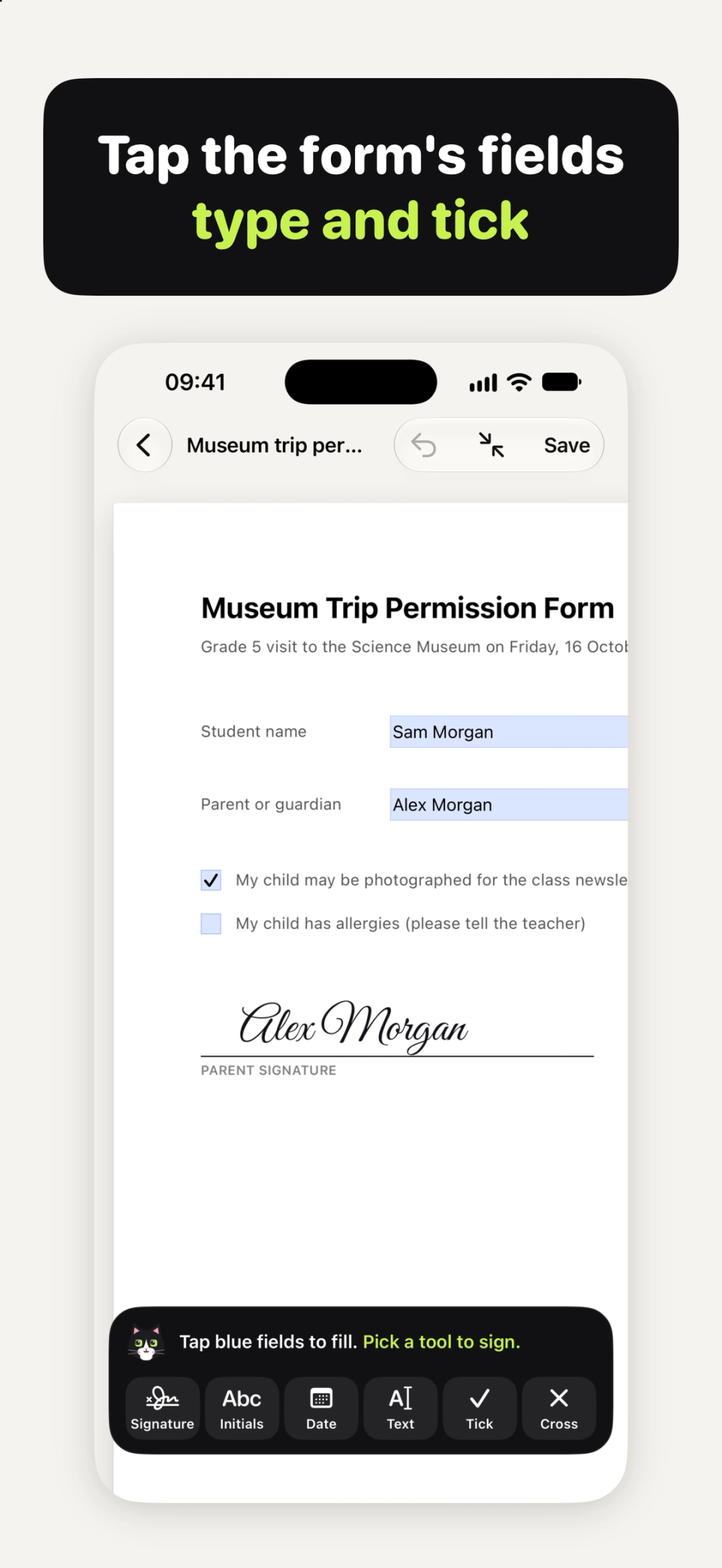
Many PDF forms have their own fields. When a PDF has them, Sign Cat shows them in blue: tap a field to type in it, or tap a box to tick it. What you fill in is printed into the signed copy.
Then sign it:
- Pick a tool at the bottom of the screen: Signature, Initials, Date, Text, Tick or Cross.
- Tap the page where it goes.
- Adjust it. Drag it to move it, and pinch or pull the corner to make it bigger or smaller. Switch between black and blue ink. Tap Done (the ✓) when it looks right.
- Made a mistake? Tap Undo at the top.
For the date, tap it and choose Format to match what the form asks for, such as "Mar 5, 2026", "March 5, 2026", "03/05/2026", "05/03/2026", "05.03.2026" or "2026-03-05". If a PDF has no fields of its own, use Text to type anywhere on the page.
Save and send the signed copy
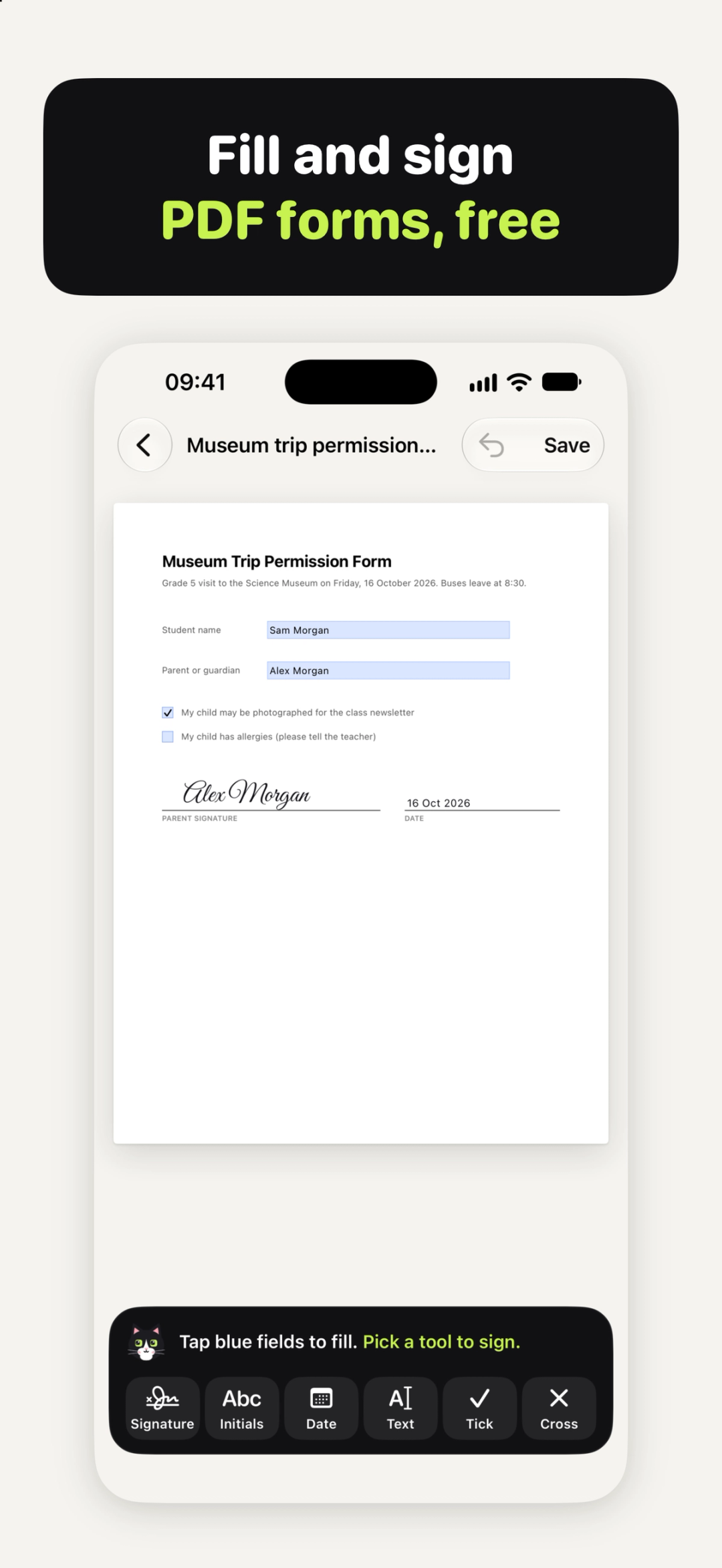
Tap Save. Saving makes a new signed copy, and your original PDF is never changed. Then choose Share PDF to send it back by email or message, Save to Files, or Print.
Signing the same form again next month? In your library, touch and hold the signed document and choose Sign again with same layout. Your placements and form entries stay where they were, and the dates move to today.
What kind of signature this is
Sign Cat places an image of your signature on the PDF. It's a simple electronic signature, not a certified digital signature with an identity certificate. If a document asks for a certified or qualified signature, use the service it names, and if in doubt, ask whoever sent it. Sign Cat doesn't give legal advice.
Sending invoices too?
If you also send paperwork of your own, our guide on how to make an invoice on iPhone shows how to make one and send it as a PDF.
What it costs
Opening, filling, signing, saving and sharing are free, with no watermark and no limit on documents. There are no ads, no account, no trial and no subscription. Sign Cat Pro is an optional one-time purchase that adds red, green and purple ink, Rotate for a signature, initials or tick in a sideways box, and Put on every page, so your initials go on every page in one tap. More on the Sign Cat page.
Your documents are kept on your device and in your own backups unless you share, save or print them. There's no account, so there's nothing to sign in to.
Quick answers
Can I sign a PDF on iPhone with my finger?
Yes. Draw your signature once with your finger or Apple Pencil, and reuse it.
Can I sign a PDF from an email?
Yes. Open the attachment, tap Share, choose Sign Cat, sign, then share the signed copy back.
Can I sign a PDF on iPhone free?
Yes. Signing, filling, saving and sharing are free, with no watermark. Pro adds more ink colours, Rotate and Put on every page.
Does it change my original PDF?
No. Saving makes a separate signed copy and leaves the original as it was.
Is this a digital signature?
It's a simple electronic signature: an image of your signature placed on the PDF, not a certified digital signature with an identity certificate.
Try Sign Cat
Try Sign Cat: free, no watermark, no sign-up → iyio.com/apps/sign-cat