 Coming soon
Keyring Cat
Tap a tag. Paste the code.
Keyring Cat makes the codes for two-step sign-in (TOTP and HOTP), each on a key tag on a felt tray with a brass ring. Add one by scanning the site's setup QR, choosing a screenshot, pasting the setup link or typing the key, or import a Google Authenticator transfer export, several QR codes in a row. Tap a tag to copy its code: the copy stays on this iPhone unless you share it, and expires from the clipboard after 60 seconds. Search and rename your tags; a deleted code waits in Recently Deleted with Undo, and erasing it asks a second time. Keep your codes in iCloud Keychain (recommended), which syncs them through your own iCloud Keychain to your Apple devices, or on This iPhone only, and add a Face ID or passcode lock if you want one. Make a backup file you keep, encrypted with AES-256-GCM with a key from your passphrase (PBKDF2-HMAC-SHA256, 600,000 iterations); restoring adds codes and never overwrites the ones already there. Move your codes to another phone or app with transfer QR codes in that same format. All of that is free, with unlimited codes, no account and no ads. With Pro, a one-time purchase: AutoFill codes from the keyboard in Safari and apps, and a Home Screen widget.
On the way to the App Store
Why it exists
“Sign-in codes stuck on an old phone.”
Why Keyring Cat exists
What Keyring Cat does instead
The house rules, the same in every new Cat app.
- The whole job is free
- No ads
- No watermarks
- No sign-up
- Pro is paid for once, and yours to keep
The real thing.
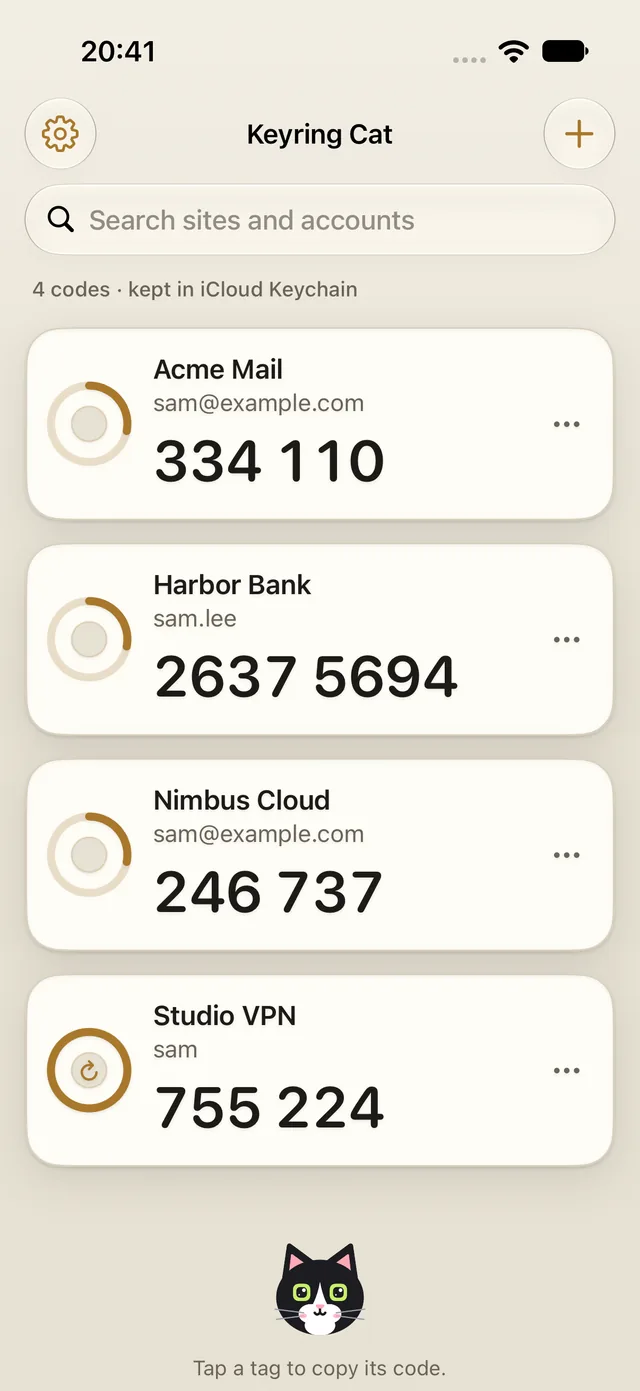
Screens from Keyring Cat as it is today, on an iPhone.
Keyring Cat: made-up demo tags for Acme Mail, Harbor Bank, Nimbus Cloud and Studio VPN, each with its code and a ring for the time left, kept in iCloud Keychain, and the tuxedo cat over "Tap a tag to copy its code."
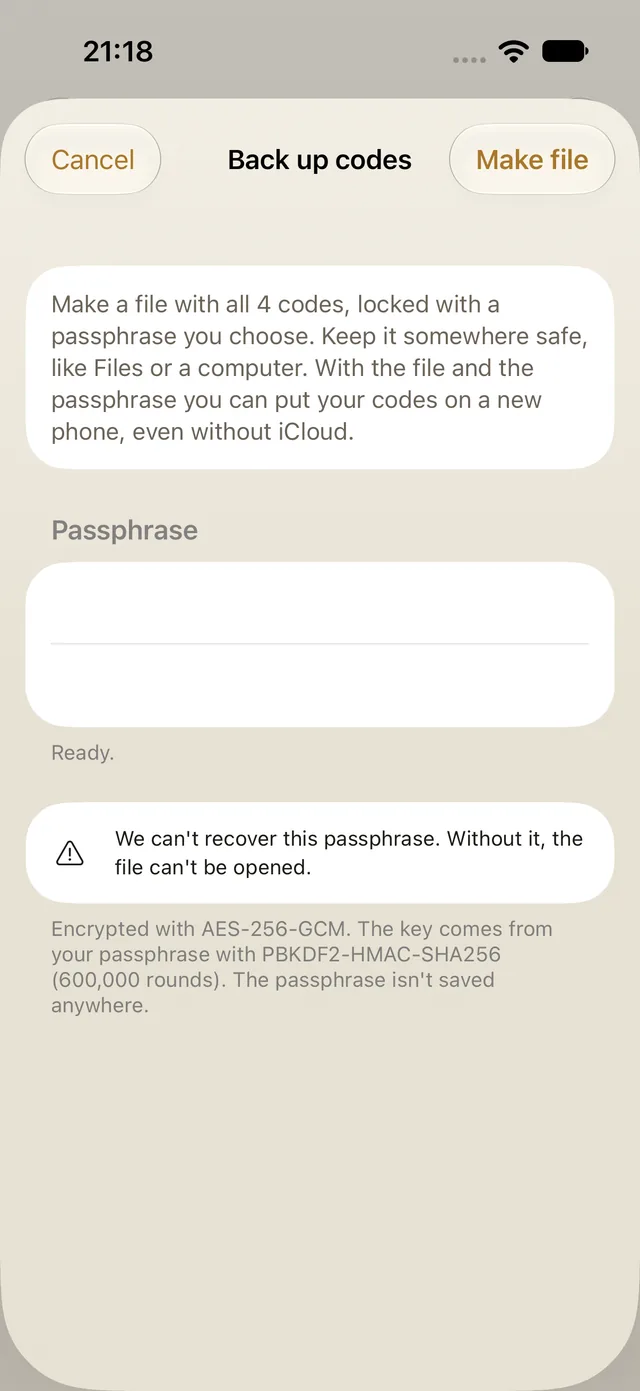
Back up codes: a file with your codes, locked with a passphrase you choose and encrypted with AES-256-GCM, with a key from your passphrase (PBKDF2-HMAC-SHA256)